Moving & Arranging Objects
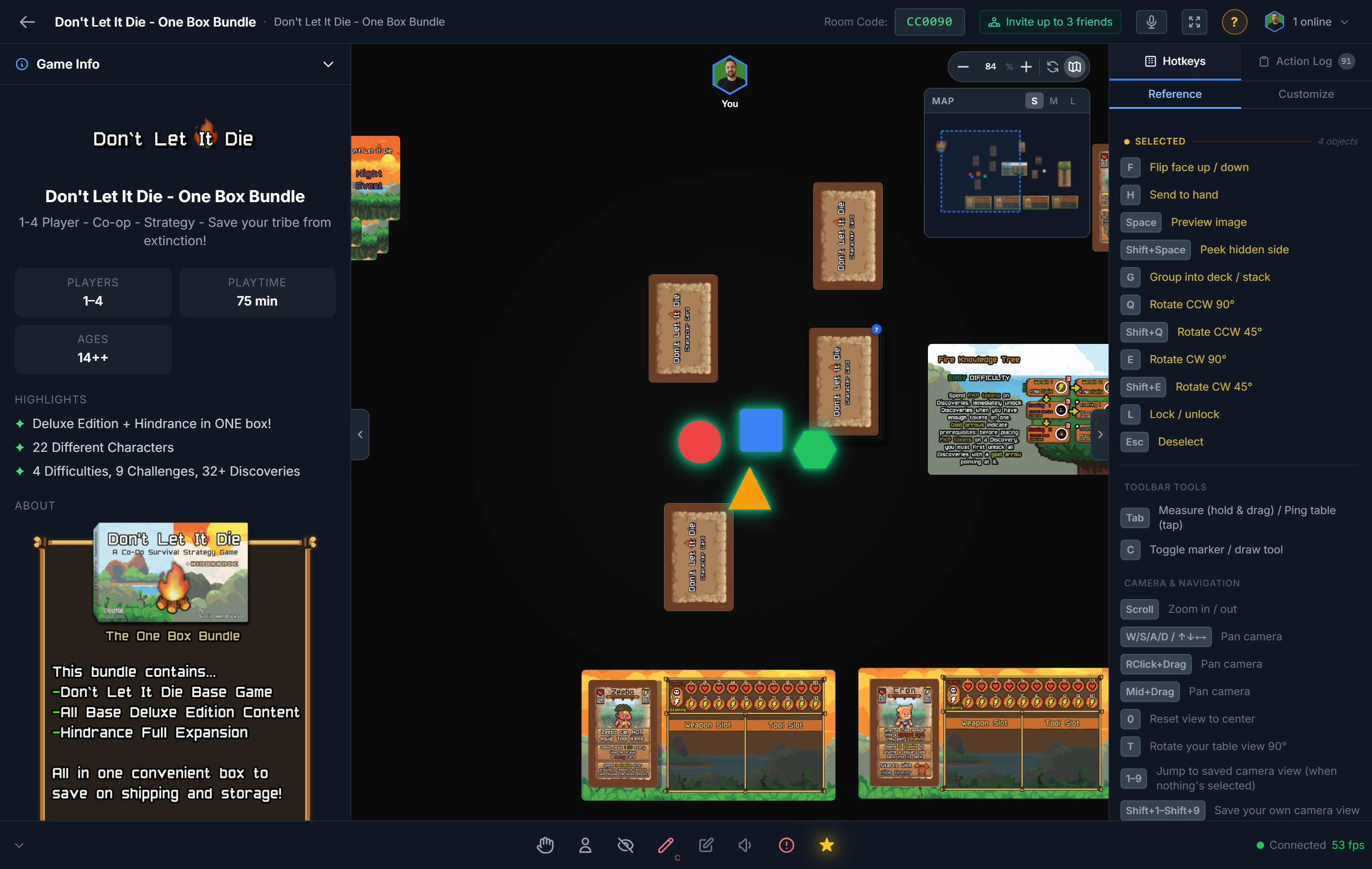
Everything on the table is an object, and they all share a common set of moves: select, drag, rotate, flip, lock. Learn these once and they work on a card, a die, a board, or a whole handful at once. (For what individual piece types do, see Cards & Decks, Bags, Token Stacks, and the other piece guides.)
Getting Pieces Onto the Table
Nothing appears automatically when a room opens; you place pieces as you need them. There are three ways:
- Your project's components are in the left sidebar, grouped by type and deck. Click one, choose a quantity, and spawn it. This is how you set up your own game.
- Generic pieces (plain dice, tokens, bags, counters, blank decks) are in the sidebar too, no project required. They're perfect for trying a mechanic before you've built art.
- Quick spawns: right-click an empty spot on the table (host only) for an instant D6, D20, coin, cube, token, bag, or counter.
Tip
Working across games or an expansion? Project Dependencies pull another project's components into this room's sidebar.
Selecting & Moving
Click an object to select it; a border in your player color shows it's yours to control. Drag it anywhere, and everyone else sees a live "ghost" follow your move so the table never feels frozen. Click empty space or press Esc to deselect.
To act on several pieces at once, multi-select: Ctrl+Click to add pieces one by one, or drag a box across empty table to grab everything inside (hold Ctrl while dragging to add to the current selection). Drag any selected piece and the whole group moves together.
Tip
Multi-select has a hidden superpower: press a shortcut while one piece sits under your cursor and it fires on your entire selection. Select a fistful of tokens, tap Q, and they all rotate together.
Rotating & Flipping
- Rotate with
Q(counter-clockwise) andE(clockwise), by your configured step (default 90°).Shift+QandShift+Erotate by half that step. - Flip a card, token, or board with
For a double-click, to show its other face.
You can set your rotation step in Player Options (see the Realtime Playtest overview).
Layering
When pieces overlap, control which sits on top from the right-click Layering menu: Send to Back, Back 1, Forward 1, Send to Front. You can also Tuck Behind a component to slide a piece partly under it, useful for tucking earned cards under a player board.
Locking & Restrictions
These keep pieces from being moved or used in ways you don't want. Most are on the right-click Restrictions menu:
- Lock (
L): pin a piece in place so it can't be dragged. PressLagain, or use the menu, to unlock. - Prevent Stacking / Bagging / Hand: stop a piece from merging into stacks, going into bags, or being sent to a hand.
- Prevent Snap to Point / Grid: stop a piece from snapping to anchors or the grid.
- Disable Snap Follow (host): keep a snapped piece from moving when its parent rotates or scales.
Note
If you can't move a piece, it's probably locked, or another player has it selected. Press L or check the Restrictions menu.
The Core Shortcuts
These act on whatever is under your cursor or selected. A double-click always triggers a piece's primary action.
| Key | What it does |
|---|---|
Q / E |
Rotate left / right |
Shift+Q / Shift+E |
Rotate by half-step |
F |
Flip card/board/token, or flip deck draw direction |
R |
Roll dice / flip coin / spin spinner / shuffle deck, bag, or stack |
Double-click |
Draw from a deck, bag, or token stack |
H |
Send to your hand |
Space |
Full-screen preview |
L |
Lock / unlock |
T |
Rotate your view |
0 |
Reset the camera |
The complete list, including host-only actions like delete and scale, is in the Keyboard Shortcuts reference.
Related: Cards & Decks · Camera, Navigation & Mobile · Keyboard Shortcuts