Camera, Navigation & Mobile
The table is bigger than your screen, so getting comfortable moving the camera is the first thing to learn. Your view is yours alone: panning, zooming, and rotating only change what you see, never anyone else's table.
On a Computer
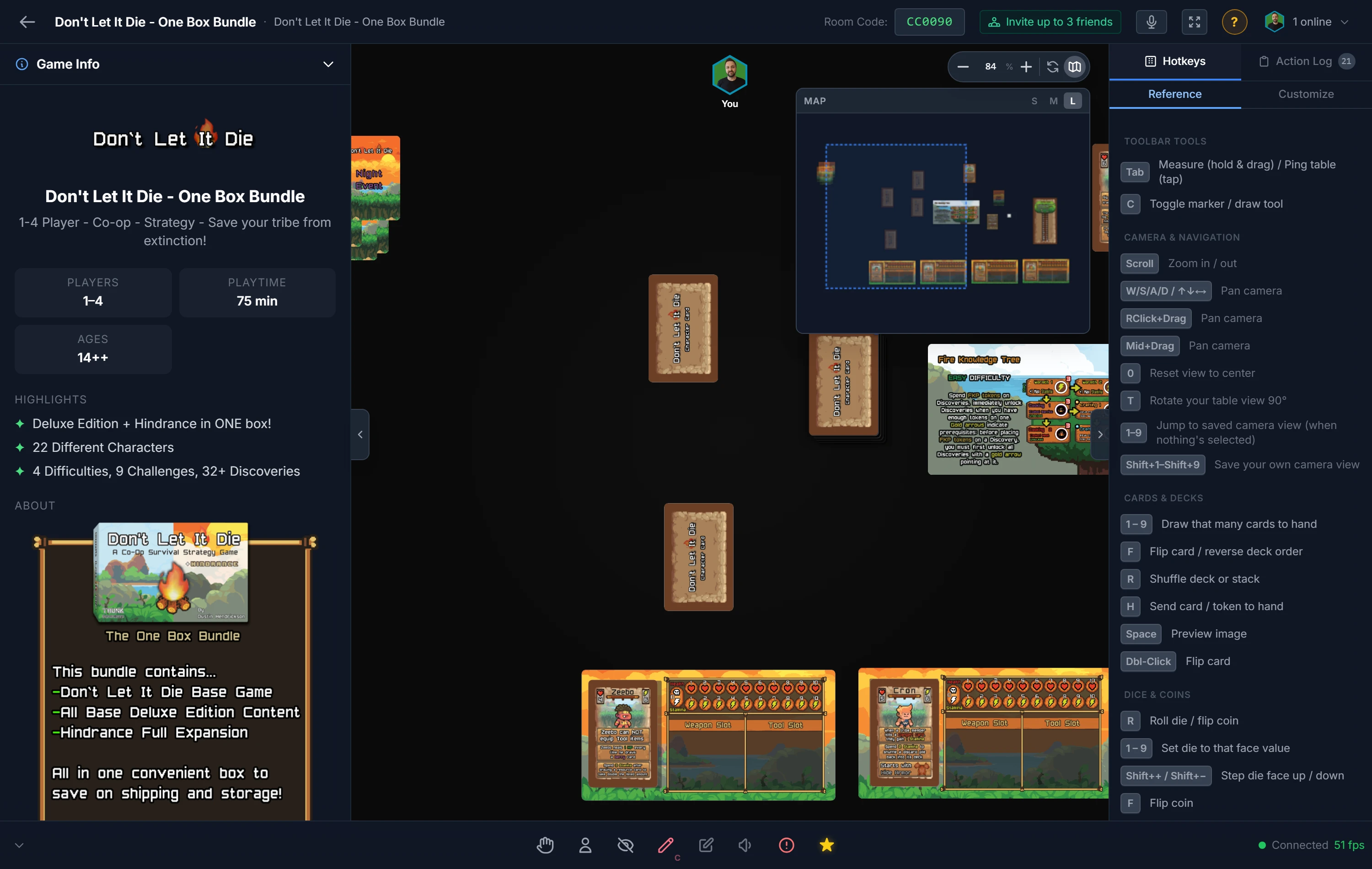
- Zoom with the scroll wheel, or the zoom buttons in the bottom-right. Click the zoom percentage to reset it.
- Pan with
WASDor the arrow keys, or by dragging with the right or middle mouse button. - Reset the view by pressing
0, which snaps back to the default position and zoom (or to a saved setup's framing). - Rotate your view with
T, which turns the whole table 90°, like sitting on a different side. This is local to you.
Tip
Lost in a big table? Press 0 to recenter instantly. Adjust how fast the wheel zooms with Scroll Zoom Speed in Player Options.
Note
Card art, board images, and text stay crisp at any zoom. The table re-renders at full resolution the moment your camera settles after a pan or zoom, so there's no lingering blur — handy when you zoom in to read fine print on a card.
Camera View Presets
Save up to nine camera positions and jump between them instantly — handy for hopping between the main board, a score track, and each player's area.
- Save a view: frame the table how you like (pan, zoom, and seat rotation all count), then press
Shift+ a number key (Shift+1–Shift+9). - Recall a view: press the matching number key (
1–9) to snap straight to it.
Note
If you have a deck, die, bag, or stack selected or under your cursor, 1–9 draws that many cards / sets the die face instead. Recall only fires when nothing is targeted.
Hosts save views into the setup itself, so when anyone opens that setup later the presets are already there. Every player can also save their own personal views on top for their session — recall always prefers your personal view, falling back to the host's.
Hosts can review and tidy slots from Camera Views → Manage in the options bar: see which slots are set, jump to them, overwrite, or clear them. All preset keys are rebindable under Hotkeys → Customize → Camera Views.
Table Surface
Set the table's look from the options bar — these are per-player view settings, so you can pick whatever's comfortable for you:
- Color — choose a felt or solid background color.
- Texture — layer a tileable surface (felt, wood planks, linen) over the color for a real-tabletop feel. Textures scale, pan, and rotate together with the table as you move the camera, so they always stay "glued" to the surface.
When the host saves a setup, the colour and texture they have chosen are saved with it. Anyone who loads or joins a room with that setup starts with that look — and can still change it for their own view afterwards. (Your own change sticks for the rest of your session and won't be overwritten if the table resyncs.)
On a Phone or Tablet
The room works on touch devices and locks to landscape automatically.
- Pan by dragging one finger on empty table.
- Zoom by pinching (it centers on your fingers), or use the +/- buttons.
- Select with a tap; double-tap performs the primary action (flip, draw, roll).
- Multi-select with a long press (about half a second); a vibration confirms it. This is the touch equivalent of
Ctrl+Click.
When an object is selected, a floating action bar appears with Flip, Roll/Draw, Rotate, Hand, and a More (⋯) button that stands in for the right-click menu. A circle button in the bottom-right hides or shows the toolbar.
Related: Starting & Joining Rooms · Moving & Arranging Objects · Keyboard Shortcuts