Your Hand & Dealing
Your hand is the private row along the bottom of your screen. Only you can see what's in it, so it's where your secret cards live. It's stored in your browser, which means a refresh won't empty it.
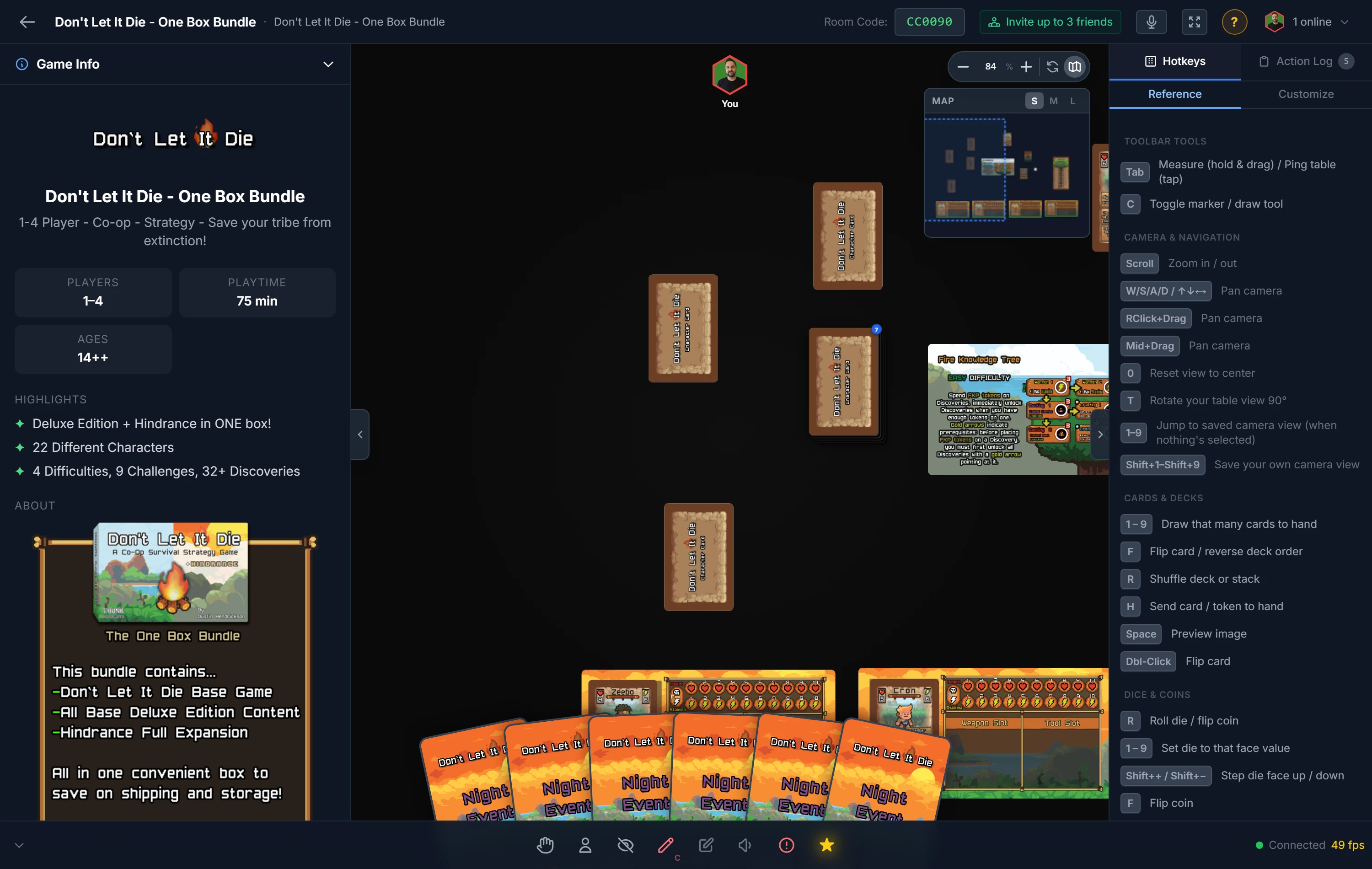
Putting Cards in Your Hand
There are three ways to move a piece into your hand:
- Select a card, piece, or single token and press
H. - Right-click it and choose Add to Hand.
- Draw from a deck or stack with the number keys (
1–9), which sends cards straight to your hand.
Note
Hand is for the things you'd physically hold. Dice, boards, bags, decks, counters, and whole stacks can't be sent to hand.
Playing From Your Hand
- Hover a card to lift it for a closer look.
- Preview it full-size with
Space. - Flip it privately with
For a double-click, so you can check a back without revealing it. - Play it by dragging it out onto the table.
Making the Hand Fit You
These settings affect only your own hand:
- Card size: a slider from 50% to 150%, or quick S / M / L presets.
- Auto-flip when drawn: have new cards arrive face-up, face-down, or untouched.
- Auto-rotate when drawn: set an angle (in 15° steps) applied to cards as they land.
Dealing to Everyone
To set up opening hands, you don't deal one card at a time. Right-click a deck or token stack and choose Deal, then:
- Enter the number of cards per player.
- Optionally tick Flip Face Up.
- Choose which players are dealt in.
- Confirm, and each player instantly receives their cards in their own private hand.
Tip
The host can peek at any player's hand (read-only) with the Hand Viewer, useful for following along or settling a rules question. See Players, Hosts & Co-Hosts.
Requesting & Giving Cards
You can move cards and tokens directly between hands. Every transfer needs the owner's approval, so a card never leaves a hand without consent. Received cards arrive face-up by default, but your own Auto-flip and Auto-rotate hand settings still apply. Tokens held in hand transfer exactly like cards.
Requesting from another player
You can ask for cards without seeing the other player's hand. Find them in the players list or their seat menu and click Request, then:
- Random cards — set a number and click Random. On accept, the owner's game randomly picks that many cards.
- Cards they pick — set a number and click They pick. The owner selects which cards to hand over, or denies.
If you can see a hand (in open-hands rooms, or as the host), the Hand Viewer adds one more option: hover the exact card you want and click Request to ask for that specific card.
The owner gets an Accept / Deny popup for each request.
Giving cards
You can hand your own cards to anyone at any time, even in closed-hands games. Find the player in the players list or their seat menu and click Give — a picker opens showing your own hand, where you can:
- Select specific cards to hand over and confirm, or
- Give a number at random — type how many (up to your hand size) and click Random.
Use the magnifier on any card to open the full-size preview first. The recipient gets an Accept / Decline popup, and the cards only leave your hand once they accept.
Auto-accept
Turn on Auto-accept requests in the hand options bar to fulfill incoming random and specific requests automatically, without a popup. They pick requests still ask you to choose. A small ON badge shows while it's active.
Related: Cards & Decks · Zones · Players, Hosts & Co-Hosts