Session Replay
Plan: Pro · Status: Beta
Record your playtest sessions and watch them back. See the table, card draws, moves and player hands at any moment.
Warning
Replay is currently in beta. The viewer works well for most sessions but may have edge cases, especially with complex object interactions. If something looks wrong, please submit a bug report describing what you expected versus what was shown.
Overview
Session Replay records every action taken in a playtest room (moves, draws, flips, rolls, deals, drawings and more) as a timestamped log. Afterwards you can watch the session back in the replay viewer, scrub to any moment, and see exactly what the table looked like at that point.
Replay is separate from Playtest Analytics. Analytics gives you aggregate stats (dice averages, most-used cards, etc.). Replay gives you a visual playback of the full session, like a video, but driven by the actual event data.
Replay vs. Analytics
| Session Replay | Playtest Analytics |
|---|---|
| Visual playback of the full session | Aggregate stats across the whole session |
| See every card, move, and draw in order | Dice roll distributions and averages |
| Scrub to any moment in time | Card draw counts per deck |
| See player hands as they were held | Component interaction heatmap |
Enabling Replay Recording
Recording is switched on per table setup, not per session. Once it is on, every room you open from that setup records.
- Open your project and find Saved Table Setups.
- Turn on Record Sessions. Each setup has a Record Sessions switch. Click it to start recording that setup's sessions; it turns red when recording is on, and the number beside it counts that setup's replays.
- Run a session as normal. Open a room from that setup. Players don't need to do anything different.
- The replay is ready when the room closes. A room closes when the host closes it, or on its own shortly after everyone has left (a persistent room stays open). The replay is also brought up to date whenever the host leaves the room.
The timeline runs from the moment the room opened to the last thing anyone did on the table, so the time a room sits idle before it closes is not part of it. If nobody changes anything on the table at all (players only join, look around and leave), no replay is kept.
Note
Only rooms you open from the setup record. A session someone starts from a share link to that setup is not recorded.
Replay expiry & saving: Every new recording appears in Recent Replays and is kept for 7 days before it is automatically deleted. To keep a replay permanently, click Save, and it moves to Saved Replays and never expires. You can save up to 25 replays per project. Recording is never blocked by the limit.
What Gets Recorded
Everything players do to the table is recorded, in the order the server received it. Cursor positions are recorded too: at most once every 3 seconds per player while they move the mouse, and the viewer shows each cursor for 5 seconds after its last recorded position.
Shown in the Replay
- Moving, rotating, scaling, flipping and locking pieces
- Drawing from decks and token stacks, to the table or to a hand
- Dealing cards to players and to zones
- Search Deck: cards taken out of a deck, stack or bag
- Shuffling, stacking cards into decks and token stacks, combining decks, and Group into deck / stack
- Playing from a hand, picking up to a hand, giving cards to another player, and flipping cards in a hand
- Dice rolls, coin flips and spinner results
- Counters and timers
- Text labels, marker drawings (on pieces and on the table) and stickers
- Zones being added, removed, changed and laid out
- Layers, and which layer each piece is on
- Rulebook page turns
- Opening packs
- Cursor movement
Not Shown
- Voice chat
- Snap point edits
- The table grid (the viewer does not draw it)
- Camera presets, blindfolds, and where each player was zoomed or panned to
- Peeking at cards, or looking through a deck without taking anything
- In-game feedback scores (analytics only)
Watching a Replay
There are two places to access replays:
- Project page: open your project's Playtesting section and choose the Replays tab. It shows Saved Replays and Recent Replays. Click Watch replay (the play button) on any replay.
- Playtest session page: if the session was recorded, its Action Timeline has a Watch Replay button.
You and the project's co-owners can watch a project's replays, and anyone you send a share link to can watch that one.
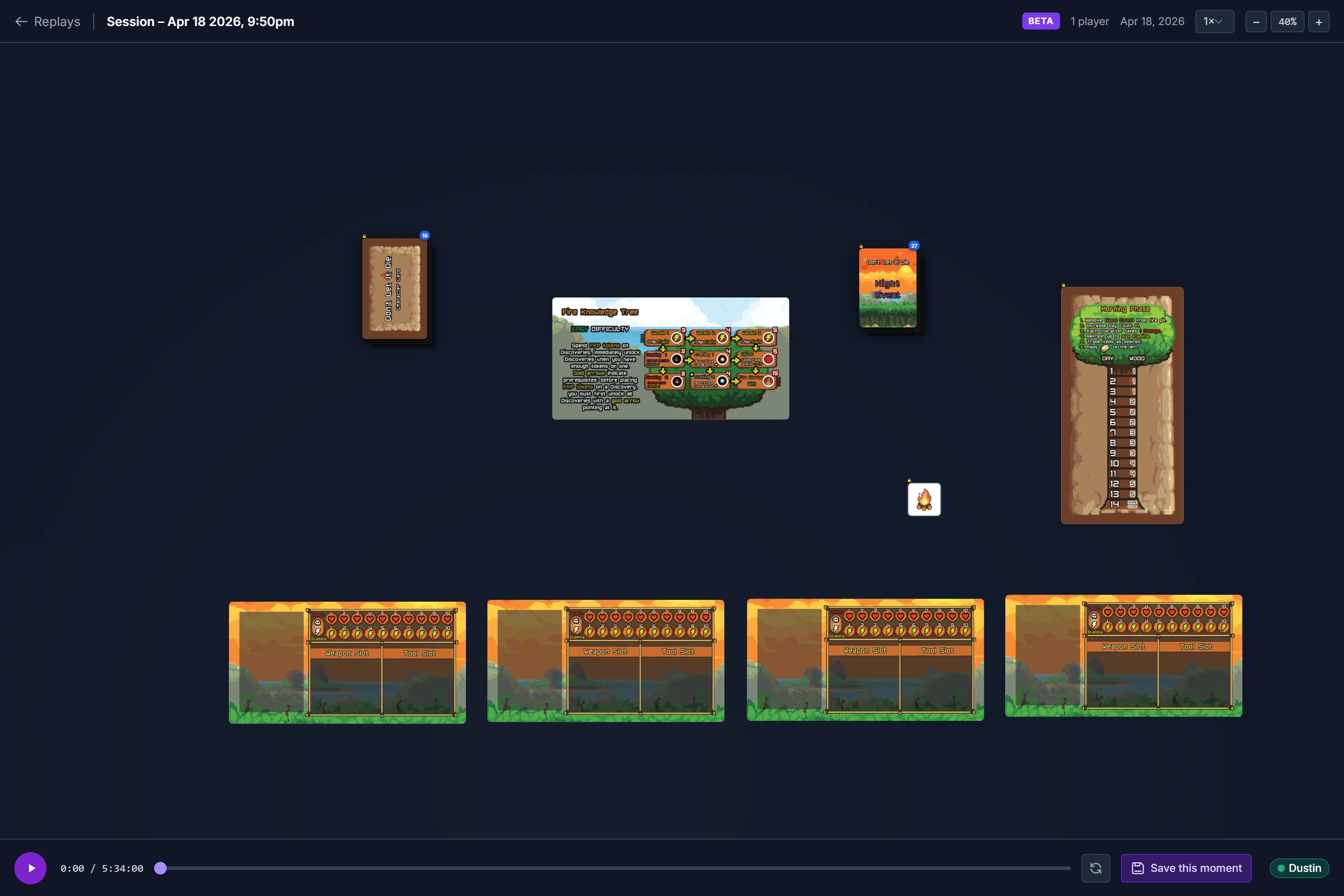
The replay opens in a full-screen viewer. The table starts in its initial state (exactly how the room launched) and plays forward from there.
Viewer Controls
| Control | What it does |
|---|---|
| Play / Pause | Click the play button or press Space |
| Skip | Press ← or → to jump 5 seconds back or forward |
| Scrub Timeline | Drag the progress bar to jump to any moment |
| Playback Speed | Choose 0.5×, 1×, 2×, 4×, or 8× in the dropdown in the top bar |
| Zoom | Use the + / − buttons in the top bar, scroll the mouse wheel, or pinch on a touch screen |
| Fit the Table | Click the zoom percentage (between − and +) to fit the whole table on screen |
| Pan the Table | Drag the table background, or drag anywhere with the middle or right mouse button. On a touch screen, drag with one finger |
| Restart | Click the restart button to go back to the beginning |
| Save this moment | Saves the table at the current point, with every player's hand, as a snapshot |
| Saved moments | Lists the moments saved from this replay. Open starts a new room from one in a new tab; × deletes it after you confirm |
| Log | Opens the action log beside the table: everything that has happened up to this point, newest first, in the same words as the room's own log. Click a line to jump to that moment |
| Timeline markers | The colored marks above the timeline show where things happened: green for cards, purple for dice, yellow for tokens, teal for counters and timers, pink for zones, orange for rulebooks, gray for notes. Click one to jump there |
| Skip quiet | On by default. Playback jumps over stretches of 2 minutes or more where nobody played, and says how long it skipped. The gray bands on the timeline are those stretches. Click to watch them instead |
The viewer remembers whether the log is open and whether quiet stretches are skipped, in this browser.
Saved moments also appear in your project's Snapshots tab, in the Playtesting section.
Player Hands Panel: When players hold cards, a Player Hands panel appears in the bottom-right corner. It shows thumbnails of each player's hand at that moment in the replay, face-up and face-down cards alike, including cards that were dealt to them or given to them by another player.
Sharing a Replay
Send a replay to someone who isn't on your project, like a playtester or a publisher:
- Open the replay and click Share in the top bar.
- Make the link. Click Create link, then Copy. Anyone with the link can watch the replay, with or without an account.
- Turn it off whenever you like with Turn off link in the same place. The link stops working at once; creating a link again makes a new one.
People watching from a link can play, scrub, and use the log and markers, nothing else: they can't save moments, and the page doesn't link to your project. Search engines are asked not to list it.
Note
A replay that isn't saved is deleted after 7 days, and its link stops working then. Save the replay to keep the link.
Sharing is part of Pro, and anyone who can manage the replay (you and the project's co-owners) can share it or turn the link off.
Managing Replays
Replays are listed in the Replays tab of your project's Playtesting section. A new replay is named after the table setup it was recorded from; rename it to anything you like. There are two tiers:
Recent Replays
- Created automatically for every recorded session in which something happened on the table
- Deleted after 7 days if not saved (an expiry badge shows time left)
- No limit on how many can exist at once
Saved Replays
- Up to 25 saved replays per project
- Never expire, kept until you delete them
- Can be unsaved back to Recent (the 7-day clock restarts)
Actions Available on Every Replay
- Watch: opens the full replay viewer
- Rename: give it a descriptive name (e.g. "4-player Saturday run")
- Save / Unsave: move between Recent and Saved
- Delete: permanently removes the replay (cannot be undone)
The project's co-owners can do all of these too.
Known Limitations
The replay system is in beta. Known edge cases we're working on:
- Timing within a second is approximate. Actions are stored to the second, so several in the same second are spread evenly across it. Their order is always the order the server received them.
- Cards dragged out of a hand, in older replays. In a replay recorded before November 11, 2026, a card a player dragged from their hand onto the table appears on the table but can stay listed in that player's hand in the Player Hands panel.
- Free-scale objects. Objects resized with the free-scale tool may not reflect the correct size at all points in the replay.
Found a bug or something that looks wrong? Submit a bug report, describe what you expected to see and what the replay showed instead.