Playtest Sessions & Feedback
Every game you run is worth recording. A playtest session is the logged history of one play: when it happened, who was there, how long it ran, what occurred, and what players thought. Sessions live in the Playtesting section of a project's page, and they're the raw material behind your analytics.
How Sessions Get Logged
There are two ways a session ends up in your history:
- Automatically, from a room. When you close a realtime playtest room, a session is saved to the project for you, capturing the duration, the action log, and any feedback submitted during play.
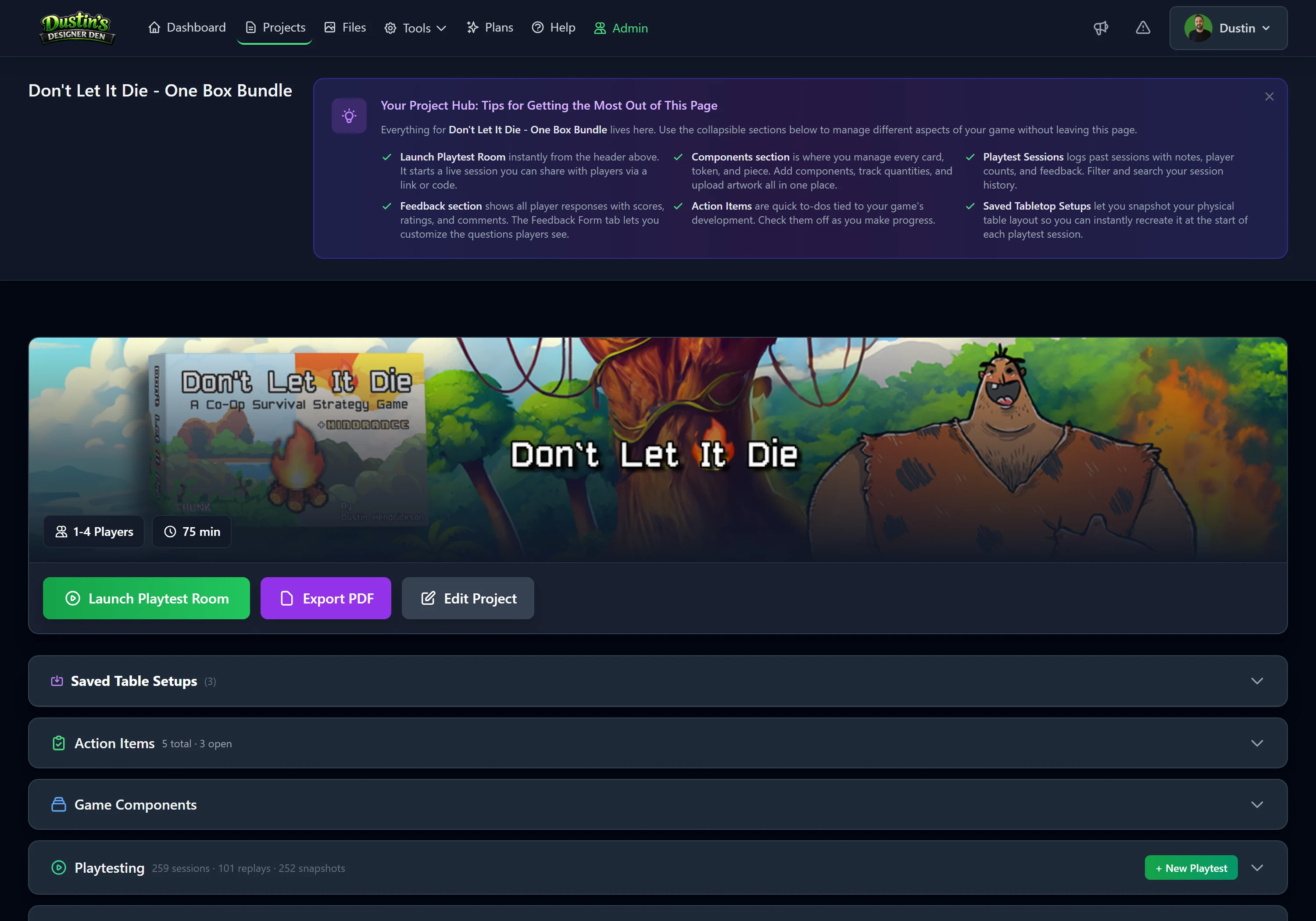
- Manually. Played in person, or want to record an old session? Open the project, expand Playtesting, click + New Playtest, and fill in the player count, duration, notes, and (optionally) the version tested.
Collecting Feedback During a Game
While a room is open, players can submit feedback at any time without waiting for the end. The form asks for ratings (like fun, difficulty, and rule clarity), a "would you play again?", a favorite part, what could improve, and any extra comments. Each submission is saved to the session immediately and tagged with the player's name, and a player can submit more than once.
Tip
Remind players to submit before they close the tab. Once they leave, the moment is gone. Feedback collection works on every plan.
Reviewing & Exporting
Open a session from the Sessions tab to see its analytics board (Pro): what happened, who waited, which rulebook pages players kept turning to, how the dice landed, and the session's notes and feedback. You pick which widgets show, in what order and how wide; see Views and Customize.
You can export a session's full action log as CSV or JSON (see Exports), and the Analytics tab rolls up trends across many sessions. See Playtest Analytics.
Note
Want to watch a session play back move by move rather than read a log? That's Session Replay (Pro).
Related: Playtest Analytics · Session Replay · Player Tools