Dextrous Import
Dextrous is a companion design tool many designers use to manage their component data in a spreadsheet-like grid. If that's where your cards and tokens already live, you don't want to retype them here, so Designer Den can read a Dextrous JSON feed and turn it into components, on demand or automatically.
Prefer to watch first? Here's a video walkthrough of Dextrous:
Note
This is for designers who already use Dextrous. If you don't, the Component Wizard and CSV import cover building components from scratch.
Connecting Your Feed
You set this up once, on the project:
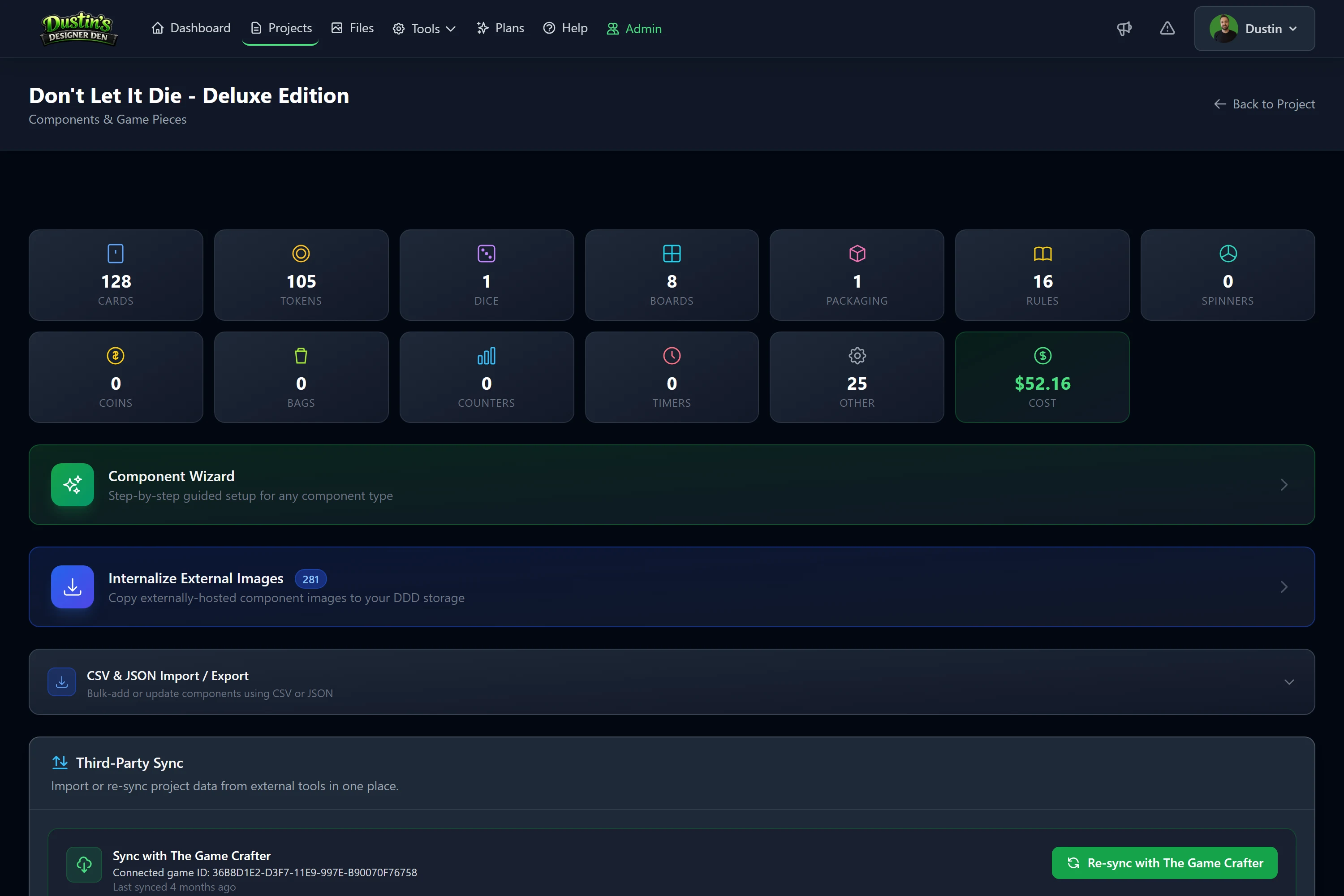
- On the project page, open the Third-Party Sync panel and find Sync with Dextrous.
- Paste your Dextrous JSON URL (it must be a public
http(s)link). - Save.
Syncing Manually
With a URL saved, run a sync to pull the feed and apply it. Designer Den reads your Dextrous data and creates or updates components from it. Existing components are matched and updated in place rather than duplicated, and anything new is created.
Sync Options
Four options sit with the sync controls, and they're remembered per project:
- Remove items missing from this sync — deletes components the feed no longer sends. Only turn this on when you export all your components from Dextrous; with a partial export it removes things that still exist.
- Overwrite cards with the same name — matches an existing card by name as well as by its Dextrous ID, so a re-import updates it instead of adding a duplicate.
- Build decks from Dextrous sections — on by default; see below.
- Use Dextrous's card order for decks — on by default; see below. It has no effect while the option above is off.
Decks & Card Order
Each section in Dextrous becomes a deck here, and Dextrous records the order of the cards within it, so your decks arrive set up the way you left them and re-syncing keeps them that way instead of shuffling them around.
While Build decks from Dextrous sections is on, the sync owns the decks it built. Move a card to a different section and it moves deck here too; rename a section and its cards follow the new name, and the deck they came from is cleared away once it's empty. A deck you built yourself in the Deck & Stack Builder is never touched, and neither is a deck still holding a card you put there by hand.
If you'd rather arrange a deck here rather than in Dextrous, turn Use Dextrous's card order for decks off. Cards are still added to and removed from your decks, only the ordering is skipped.
If you'd rather manage your decks here entirely, turn Build decks from Dextrous sections off. Your cards keep syncing, and no sync will create a deck, move a card between decks, or take a card out of one. Decks the sync already built stay exactly as they are; they're yours to keep or delete from the Deck & Stack Builder.
Note
The first sync after this option arrived will put your Dextrous-managed decks into the order Dextrous specifies. If you had arranged one of those decks by hand, turn the option off before syncing.
Important
Dextrous puts a card in one section. If you need a card in several decks, turn Build decks from Dextrous sections off and build those decks in the Deck & Stack Builder, where a card can belong to as many as you like.
Syncing From a Playtest Room
You can also trigger a Dextrous sync from inside a live playtest room. After it pulls the latest data, the host can push the updates onto the matching pieces already on the table, so a typo you fix in Dextrous can appear in an open session without a reload.
Related: Components · The Game Crafter Import · Exports & Bulk Import · Tabletop Simulator Import